Steps to copy your design
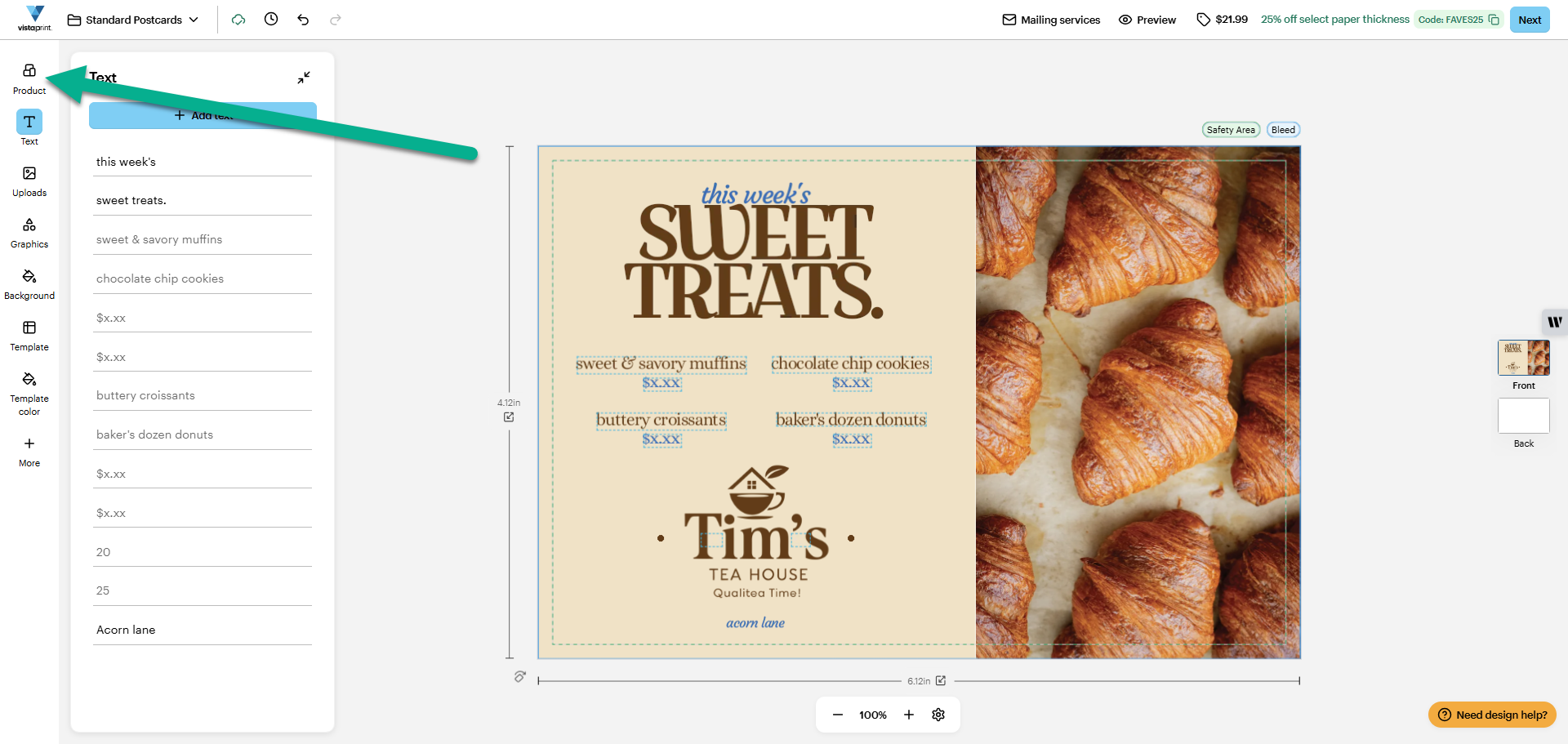
Open the Product tab
Open your saved design in Studio. In the menu on the left, select the Product tab to open the product options menu.
Here, you can make changes to your product selections.
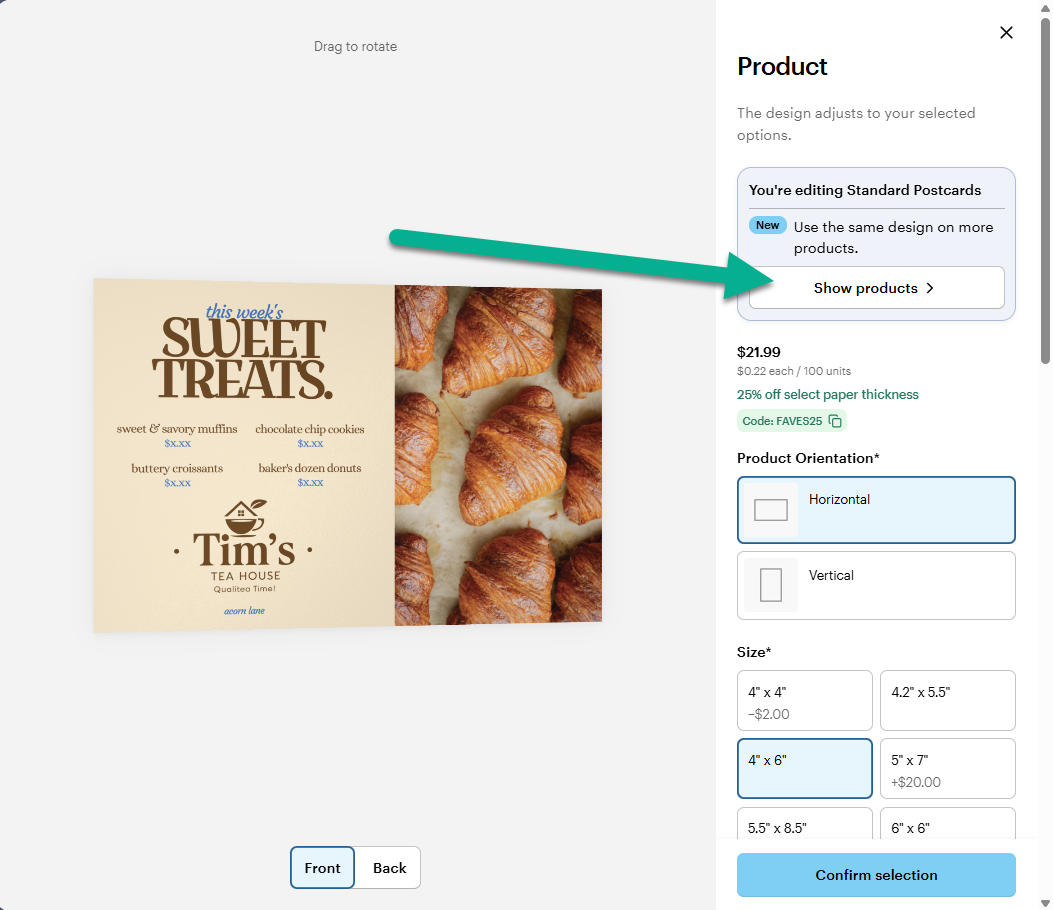
Under 'Use the same design on more products', select the ‘Show products’ option to browse other products.
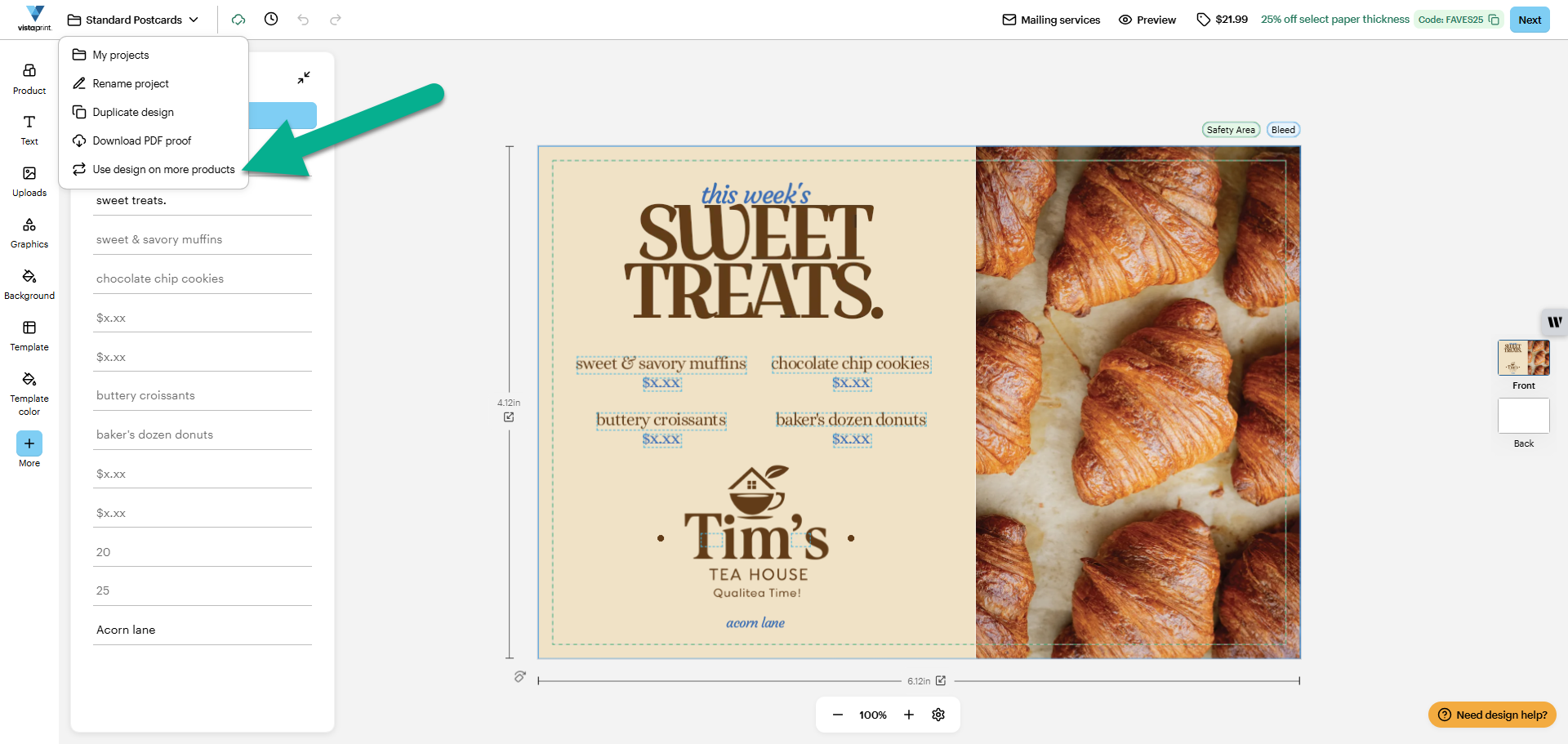
You can also find this option by selecting the product name.
Choose your new product
In the ‘Use design on more products’ window, browse the categories or use the search bar. Select the product you want to copy your design to.
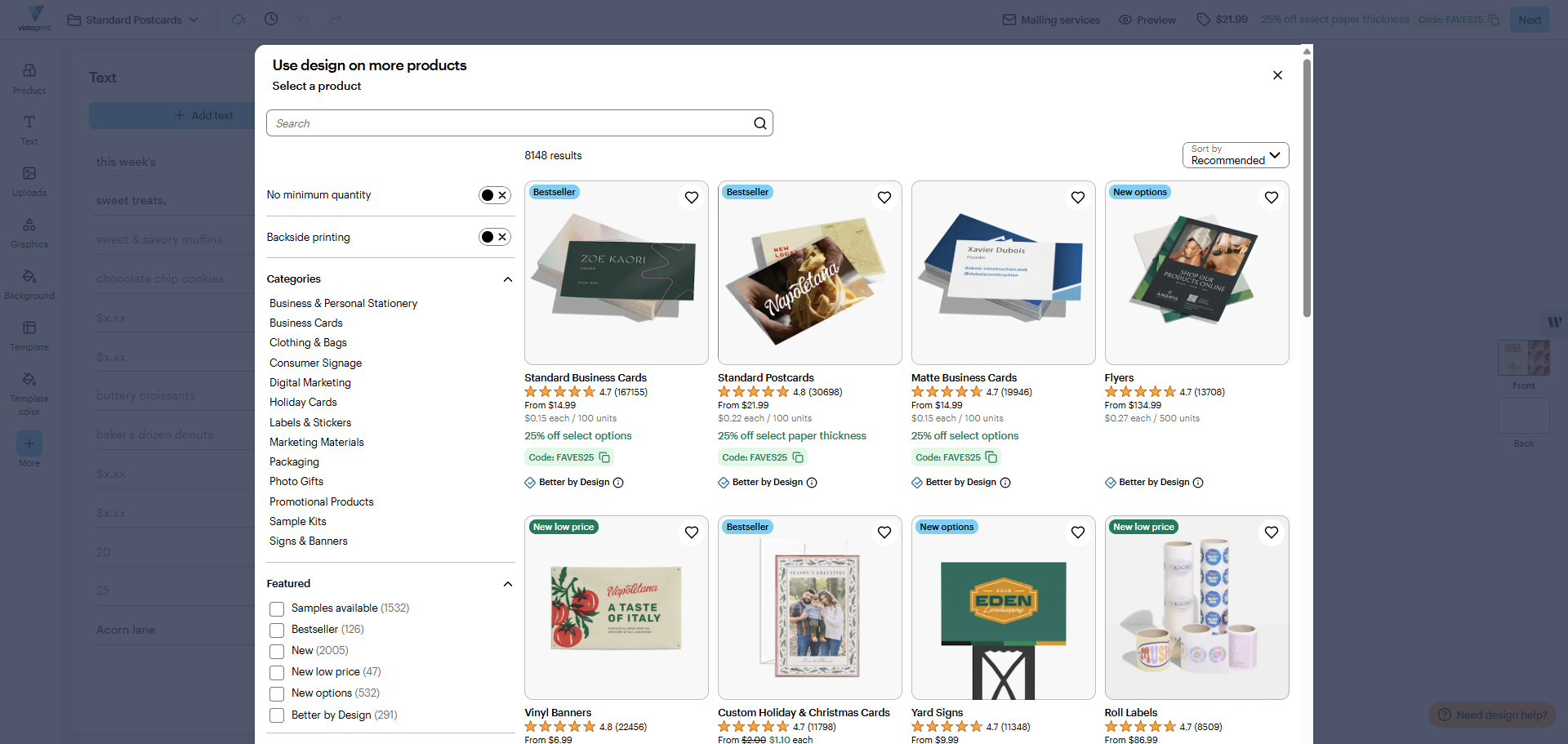
Most products support design copying. Some products that use a separate design tool, like photo books and calendars, do not.
Check product selection and confirm
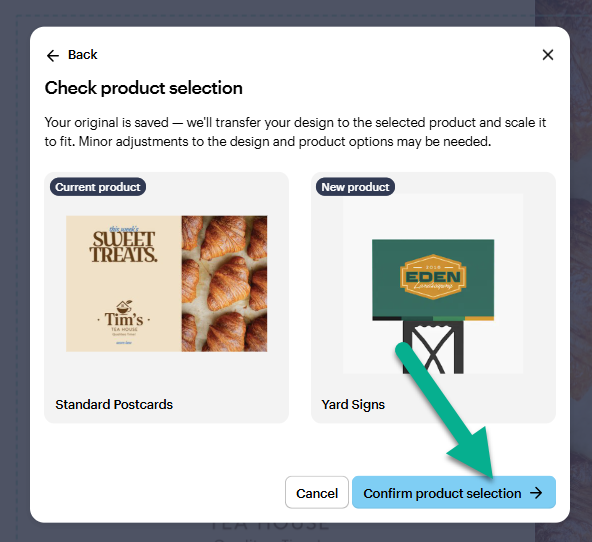
Review the side-by-side preview of your current and new product. Select ‘Confirm product selection’ and we'll transfer your design to the selected product and scale it to fit.
Review and adjust your layout
Your new project will open in a separate browser tab.
Because products have different shapes, review your layout before you continue:
Move or resize text and images so they look good on your new product.
Check that all important text, logos and graphics stay inside the safety line.
Stretch background colours or images all the way to the bleed line.
When you are satisfied with your design, select ‘Next’ to add the product to your basket.